Contents
The new NHS Jobs Blocks plugin will provide your site with live feeds of current vacancies that are advertised on the NHS jobs website. The NHS Jobs Blocks plugin provides 2 blocks that can be added to your pages, these are Jobs Block Feed and Jobs Cards.
Once you have posted your job adverts on the NHS Jobs website they will be accessible through the NHS Jobs online search features and Jobs by Email to job hunters on the internet.
Those identified as for ‘All NHS Jobs Visitors’ will be available to any job seekers with public internet access to the Worldwide Web. Those identified as for ‘Internal Only’ can be available to an organisation’s own employees and will not be available to job seekers visiting the NHS Jobs website or receiving Jobs by Email from NHS Jobs.
You can list your job adverts, both ‘All NHS Jobs Visitors’ and ‘Internal Only’, from or within your own website or intranet (‘Internal Only’ adverts should only be available through your own intranet, to avoid receiving applications from job seekers outside of your organisation.)
You can do this in one of the following ways:
- You can put a button, banner or link on your website or intranet which, when selected, will display a page from the NHS Jobs site listing your vacancies only.
- You can return a list of your vacancies in xml format which can then be formatted on your website or intranet to be displayed as part of it.
- You can return a list of your vacancies as an RSS feed.
Jobs Block Feed
The Jobs Block Feed will provide a full list of NHS jobs in the style of a data set. The feed can be configured manually by site admins or the Jobs Feed can be generated dynamically for the NHS jobs API.
Jobs that are added manually is primarily for the global team, as this was designed for promoting volunteering opportunities that exist outside of the NHS.
Jobs that are generated dynamically for NHS via NHS jobs API are for advertising jobs that exist inside the NHS. i.e nurses, doctors etc. All of these would be advertised on NHS jobs, so you can use a feed to populate the site.
Please use the following link on how to add a jobs cards to your page.
Jobs Cards
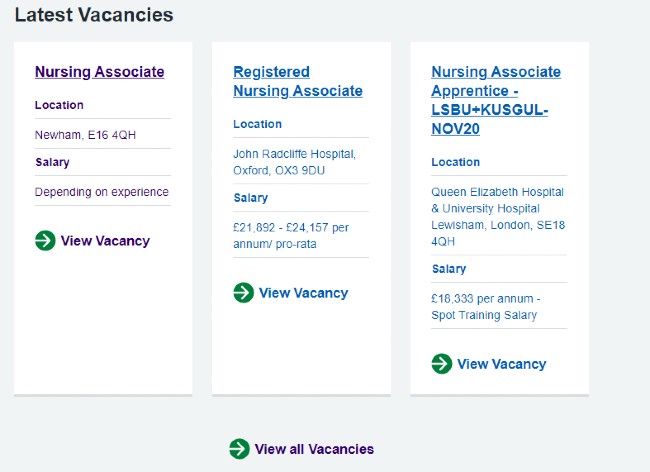
The Jobs Cards block will display the first 3 job adverts from your feed.
Please use the following link on how to add a jobs cards to your page.
Option 1 – Access Results in NHS Jobs
The first option will result in an NHS Jobs service page listing your vacancies being displayed with all navigable options available to the jobseeker as shown in Figure 1.
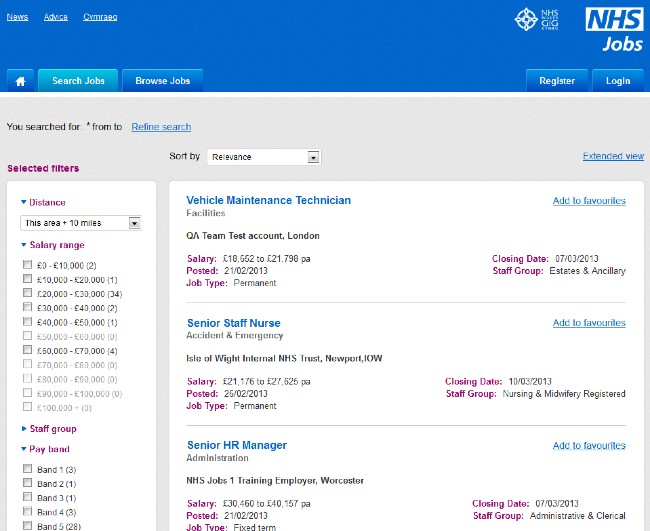
Using option 1 means that the visitor will be viewing the list directly on NHS Jobs website, not your website, and will have all NHS Jobs search and refine features available to them. You could display this information in a new browser window/tab so that your website remains open in their browser.
For this option, use the following url with the button, banner or link (where the number 123456 is replaced by your client_id1 ):
www.jobs.nhs.uk/extsearch?client_id=123456
You can add further information to the url to further customise your search. Please see Table 1 later in this document for details.
*Your client_id is the unique identifier used to identify an organisation within the NHS Jobs system. This is not your vpd_code. You can see your client_id by looking at your Account id on your “Employer details” page on the NHS Jobs site.
Option 2 – XML
The second option allows the results to be embedded within your website or intranet under your control. In this case NHS Jobs will return the raw data in an xml structure. You will need to produce the necessary software to format the data, with styles and images held locally, as required upon the page on your website or intranet.
To do this simply use ‘search_xml’ instead of ‘extsearch’ in the url, replacing the client_id with the appropriate value for your organisation.
www.jobs.nhs.uk/search_xml?client_id=123456
XML Element Definitions
| Element | Description |
|---|---|
| <nhs_search> | Root element, this contains all other elements. |
| <status> | Contains the elements listed below. |
| <number_of_jobs_found> | Contains the overall number of search results. |
| <message> | Contains error message generated by the request. |
| <vacancy_details> | Contains the elements listed below, all of which make up the individual vacancy. |
| <id> | NHS Jobs internal reference to the vacancy. |
| <job_reference> | Contains the display reference from the job advert. This is structured as [vpd_code] & ’-‘ & [original reference] e.g.. 123-1234 |
| <job_title> | The Job Title from the job advert. |
| <job_description> | The first portion of the main text component of the job advert. Where this is truncated, The text will contain html formatting to highlight the terms matched from the original query. |
| <job_employer> | The employer organisation advertising the job. |
| <job_type> | The job type of the vacancy. |
| <job_salary> | The salary from the job advert. |
| <job_location> | The Displayed Town/Location from the job advert. This includes the Postcode. |
| <job_closedate> | The current expiry date from the job advert. |
| <job_postdate> | The published date from the job advert. |
| <job_staff_group> | The staff group category for the vacancy. |
| <job_url> | The link to the vacancy details on the NHS Jobs website. |
Option 3 – RSS
The third option allows the results to be obtained by any user with an RSS reader.
To do this simply use ‘search_rss’ instead of ‘extsearch’ in the url, replacing the client_id with the appropriate value for your organisation:
www.jobs.nhs.uk/search_rss?client_id=123456
Using the above, the results returned will be for the last 60days only up to a maximum of 200 vacancies, although the user’s RSS reader will keep the full list from the point the list was first collected.
RSS Element Descriptions
| Elements | Description |
|---|---|
| <description> | Contains details of the search terms used |
| <pubDate> & <lastBuildDate> | The date and time of the last data pull. |
| <count> | The number of results found |
| <item> | The information per vacancy |
| <title> | The Job Title from the vacancy advert |
| <link> | The URL at which the vacancy can be found |
| <description> | The first portion of the main text component of the job advert. Where this is truncated, The text will contain html formatting to highlight the terms matched from the original query. |
| <author> | The employer organisation advertising the job. |
| <closingDate> | The current expiry date from the job advert. |
Setting Up Your Own Search
You can set up your own search links by including any of the attributes below in the search string. Search links can be used to provide the visitor to your website with a link to quickly perform a pre-defined search on your jobs advertised on NHS Jobs. Examples of this could include:
For “Internal Only” jobs
www.jobs.nhs.uk/extsearch?client_id=123456&internal_only=Y
www.jobs.nhs.uk/search_rss?client_id=123456&internal_only=Y
For “scientist” jobs
www.jobs.nhs.uk/extsearch?client_id=123456&keyword=scientist&field=title
www.jobs.nhs.uk/search_rss?client_id=123456&keyword=scientist&field=title
For “nursing” jobs
www.jobs.nhs.uk/extsearch?client_id=123456&keyword=nursing&field=title
www.jobs.nhs.uk/search_rss?client_id=123456&keyword=nursing&field=title
For jobs including “Day Care” in advert text
www.jobs.nhs.uk/extsearch?client_id=123456&keyword=%22day+care%22&field=description
www.jobs.nhs.uk/search_rss?client_id=123456&keyword=%22day+care%22&field=description
(where ‘123456’ is replaced the client ID of your organisation)
Alternatively, you could add a search form, or search box, on your website where the visitor can enter the term(s) they are searching for. When the visitor activates the search, the values entered would produce the necessary search on the NHS Jobs database and list the results on your website. An example is available upon request.
Some of the additional attributes that you may wish to include in search links or a search form are listed on the following pages.
Here are a few guidelines concerning constructing your URLs
- All characters should be URL encoded, e.g.
- spaces should be replaced with +s, e.g. day+care
- &s should be replaced with %26
- Double quotes should be replaced with %22
- To check for appropriate URL encoding, use an appropriate online tool
Table 1 Search Attributes
| Attributes | Action | Notes | Values | Default values |
| client_id | Use this to ensure that all jobs are limited to your employer id | Comma-separate multiple client_ids if necessary | ||
| internal_only | Use this to ensure that only jobs marked as ‘Internal Only’ are listed. | If this parameter is used then you must also include a “client_id” parameter | Value must be: Y | |
| group_internal | Use this to ensure that only jobs marked as ‘Group Internal only’ are listed | If this parameter is used then you must also include one or more “client_id” parameters, comma-separate multiple client_ids if necessary | Value must be: Y | |
| keyword | Use this to filter on the job title, advert description or job reference. If more than one keyword, separate them with encoded spaces, i.e. +. But if using a phrase, use encoded double quotes, i.e. %22 | If this parameter is used then you could also include a “field” parameter | ||
| field | Directs the use of keyword searching to relevant fields | Only required if “keywords” is also used. | Value could be one of: title description | Defaults to searching in all areas if not specified. |
| location | To filter on either the vacancy postcode or the displayed town/location, use this parameter | If this parameter is used the you could also include a “distance=” parameter | Value should be either a full postcode or outer postcode e.g. ‘BN11’ is the outer postcode of the full postcode ‘BN11 1EG’. Alternatively, use a displayed town/location e.g. ‘manchester’ | |
| distance | The location search can be expanded in radial increments. Using 1 only returns jobs where there is an exact match with either the Displayed Location or the Postcode. Using any of the number values searches for jobs in other locations where the centre of the locations are within the radial distance (eg within 5 miles). | Only used if “location” is also used. | Value could be one of: ‘1’ = this area only (i.e. within 1 mile) ‘5’ = within 5 miles ‘10’ = within 10 miles ‘20’ = within 20 miles ‘30’ = within 30 miles ‘50’ = within 50 miles | Defaults to ‘1’ if not specified. |
| client_name | To filter on Employer Name use this parameter. | Replace spaces with +s, e.g. ‘sample+employer’ | ||
| min_salary | Use this and, if you desire, the “max_salary” field to filter the search to jobs between 2 values | Value format of ‘A’ followed by two or three digits as the number of thousands of pounds. (eg. A23 for £23,000) | Value must be of format: Axy or Axyz | |
| max_salary | Use this field and, if desired, the “min_salary” field to filter the search to jobs between 2 values | Value format of ‘A’ followed by two or three digits as the number of thousands of pounds. (eg. A23 for £23,000) | Value must be of format: Axy or Axyz | |
| jobtype | Use this field to filter on the type of job. | Value must be one of: ‘P’= Permanent ‘F’= Fixed Term ‘B’= Bank ‘H’= Honorary ‘L’= Locum ‘V’= Voluntary ‘TR’= Training ‘S’= Secondment ‘AP’= Apprenticeship ‘AH’ = Ad hoc | ||
| sort_by | Used to control the order in which the search results are displayed. | Value must be one of: ‘date’= Most recent first ‘salary’= Highest salary first | Defaults to most relevant first, if not specified. | |
| simple_view | Used to control whether the shorter form of the job advert is shown. | Value must be: ‘Y’= exclude description | Defaults to long descriptions, if not specified. | |
| daysback | Used to control how recent the returned jobs should be | Value must be: ‘7’= in the last 7 Days ‘3’= in the last 3 Days ‘2’= in the last 2 Days ‘0’= Today | Defaults to all jobs if not specified. | |
| resonly | Use this if you want to embed the search results within your own web page. This is an optional attribute used to return the ‘results only’ without the header, side and footer navigation. Further, you have the option to change the background colour using HTML colour codes, e.g. CCCCCC = grey. | Value must be one of: ‘N’= don’t show navigation items ‘Y’= show navigation items | Defaults to ‘0’ if not specified. | |
| from_date | Use this if you want to display the search results from a specific date they were published on NHS Jobs to the current day | Format must be: “DD-MM-YYYY”, i.e. 1st October 2013 = 01-10-2013 | ||
| department | Use this to filter on text within the Department field on the vacancy form | |||
| area_of_work | Use this field to filter on the Area of Work. | Value must be a code value for the area of work category. Please see ‘Area of Work help’ page at https://www.jobs.nhs.uk/support/help/area_of_work.html | ||
| pay_scheme | Use this field to filter on the Pay Scheme | If used in combination with pay_band,, only valid combinations should be used. Please refer to the valid pay_band and pay_scheme combinations in table 2. | Value must be one of: ‘AC’=Agenda for Change ‘MD’=Hospital Medical and Dental ‘SM’=Very Senior Manager ‘OT’=Other | Defaults to all schemes if not specified. |
| pay_band | Use this field to filter on the Pay Band | Value must be one of: ‘1’ ‘2’ ‘3’ ‘4’ ‘5’ ‘6’ ‘7’ ‘8a’ ‘8b’ ‘8c’ ‘8d’ ‘9’ ‘CN’=Consultant ‘AS’=Specialty Doctor ‘SG’=Foundation Doctor ‘SR’=Specialty Registrar ‘DO’= Doctor – Other | ||
| staff_group | Use this field to filter on the Staff Group, to separate out different categories of adverts | Value must be: ‘ANY’= any staff group ‘SG20’= Additional Clinical Services ‘SG25’= Additional Professional Scientific & Technical ‘SG10’= Administrative & Clerical ‘SG15’= Allied Health Professionals ‘SG30’= Estates & Ancillary ‘SG35’= Healthcare Scientists ‘SG45’= Medical & Dental ‘SG40’= Nursing & Midwifery Registered ‘SG55’= Students |
Manually Add Jobs to Create Jobs List
The below tutorial video will show you how to create a jobs list manually.