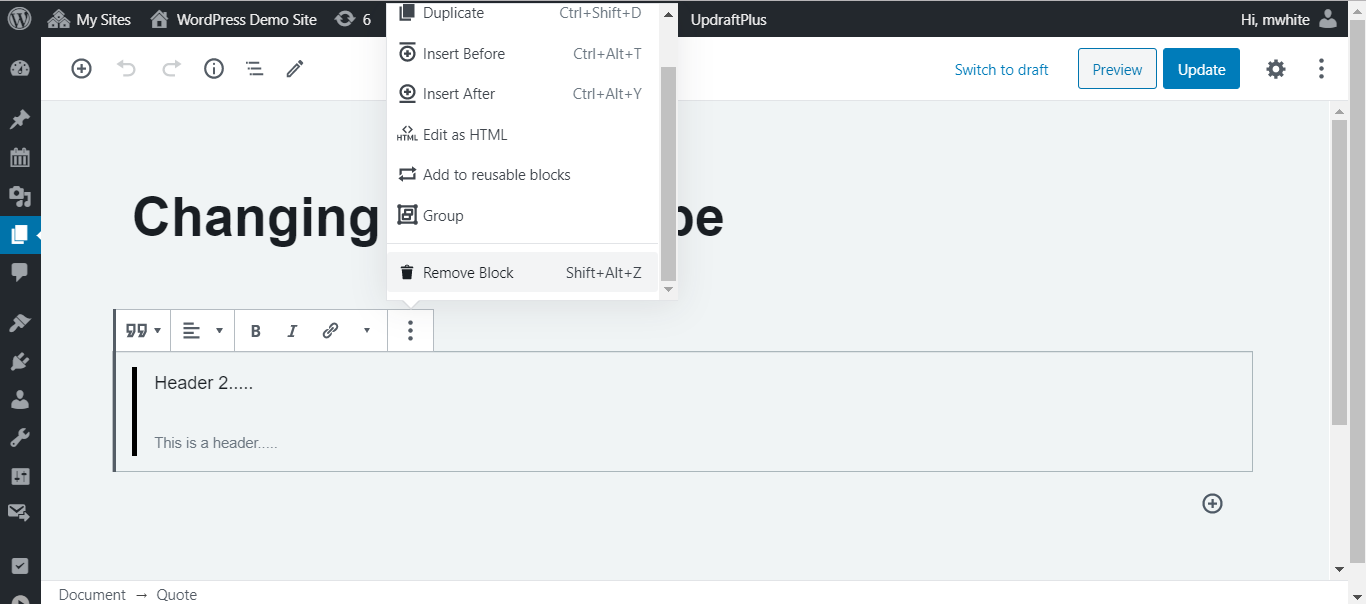
The WordPress Editor is a out of the box editor that can deliver media-rich pages and posts to give your pages a consistent look and feel. With easy drop and drag blocks including text, images and many more more features each block can be moved to your satisfaction. There is no custom HTML to make blocks everything is included within the block editor. A more detailed breakdown of different blocks can be found here
How Does the Block Editor Work?
Blocks
A WordPress editor uses blocks to enhance your content on new or existing pages. The block editor will bring your pages to life, which you can add custom HTML code and various embeds.
Breakdown of the Block
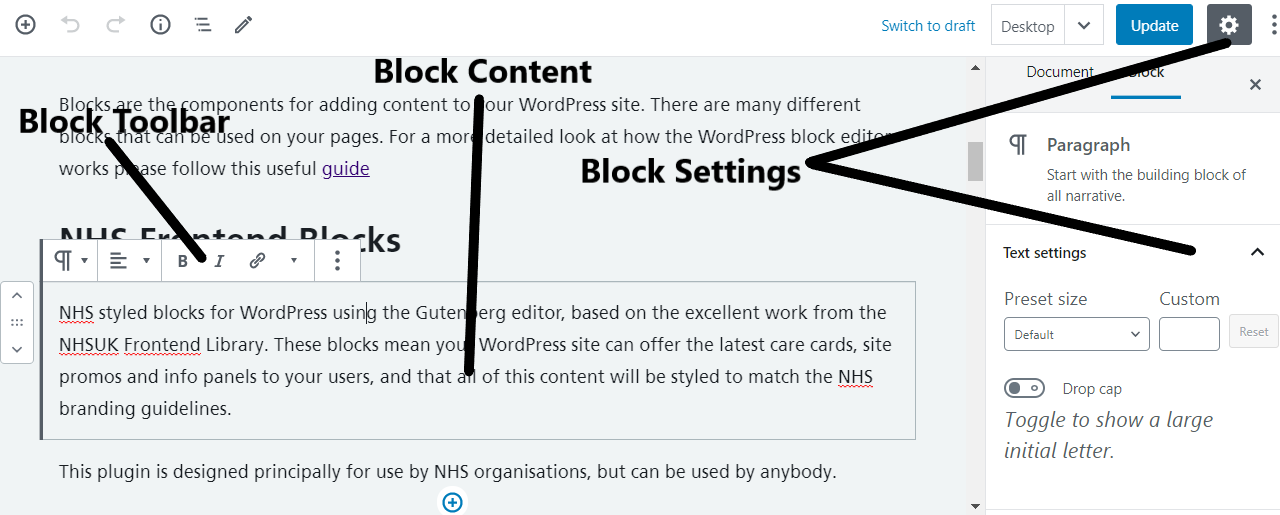
Each block consists of a Block Toolbar, a Block Settings Sidebar and the Block Content. Blocks are divided into three sections: Block Toolbar, Block Settings Sidebar, and Block Content. Please see image below:
Adding a Block
There are many blocks to add to your WordPress site, which are organized by category and by most recent use. You can edit or move each block independently of other blocks, and individual blocks sometimes come with their own formatting settings for even greater control over layout and function.
Adding a BlockConfiguring a Block
Each WordPress block has its own settings. To find these settings select any block on your page in edit mode this will reveal a toolbar on the right hand side. You will find various additional settings in the sidebar, these include styles and an advanced tab for additional CSS styles.
The Document Settings is where you can add tags and categories, choose a featured image, see and change the status of your post, and more — these are options that apply to the page or post as a whole.
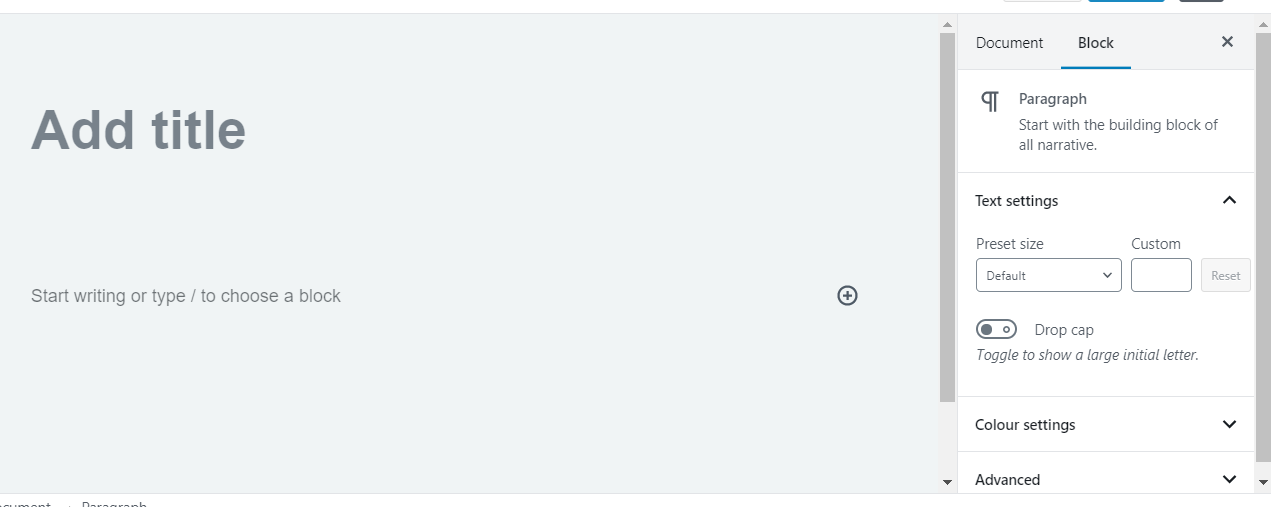
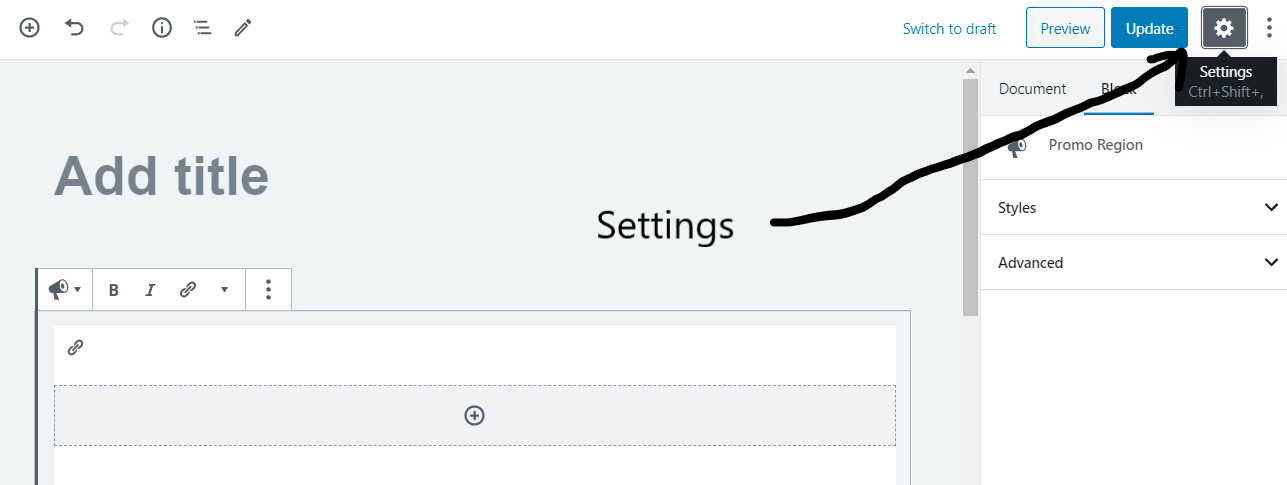
You can click the cog icon at the top right of the editor to show or hide the settings column (see screenshot below)
Changing a Block Type
What if you’d like to change a block type? No problem: you can transform each block to another similar or related block type. For example, change a paragraph to a heading, a list, or a quote.
Changing a Block TypeRemoving a Block
To remove a block, select the block and click the three dots right above it. Among the settings there you’ll see the option to remove that block.